This guide will help you set up a playtest request on Lysto, whether you're looking for a Single-session, Longitudinal, Survey only, Multi- session or Concept playtest. Follow these simple steps to gather valuable player feedback through video sessions and surveys.
1: Choose the Type of Playtest
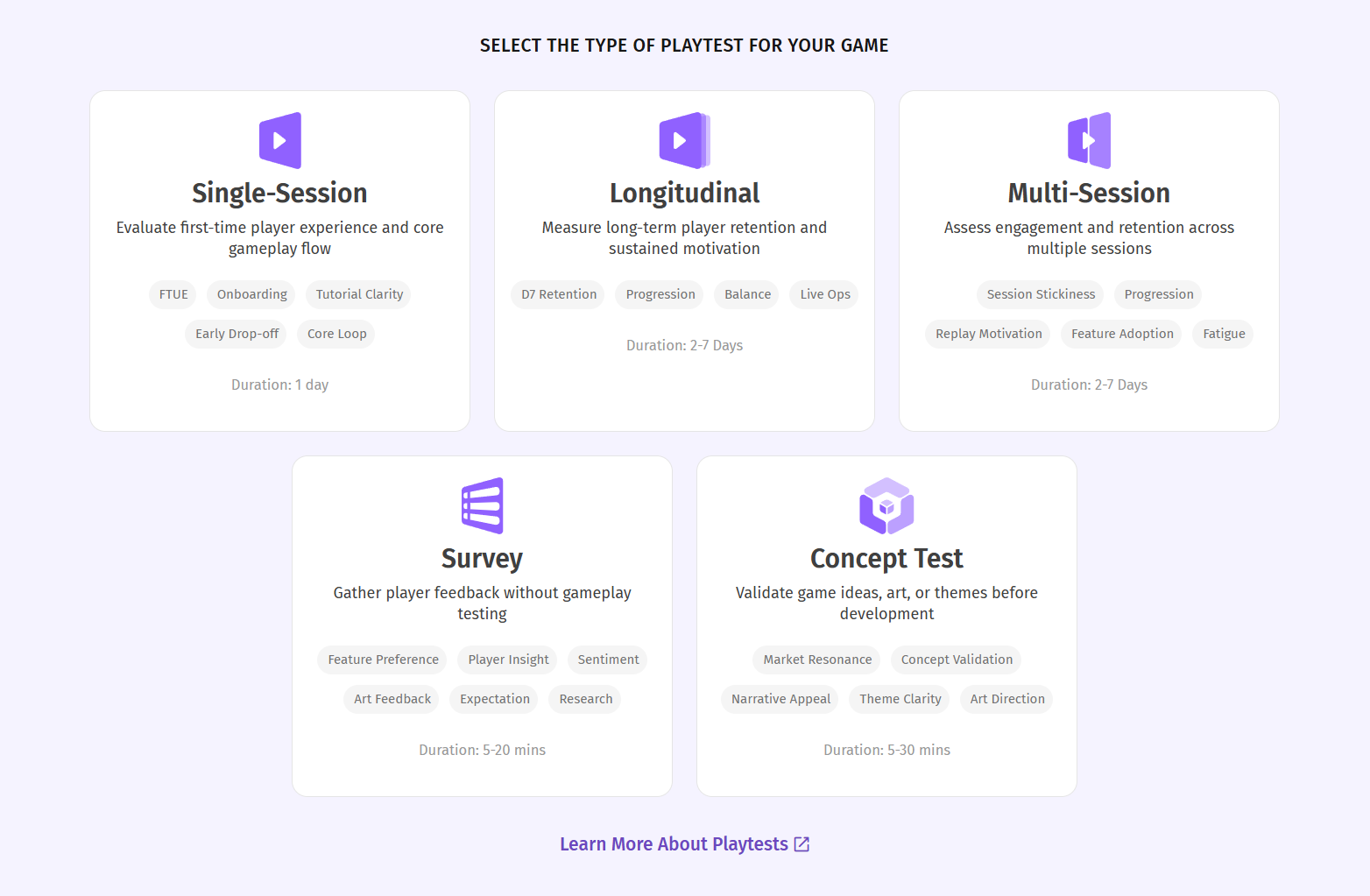
To create a playtest request, click on <+ New Playtest> at the top right corner on the user dashboard. Lysto offers various types of playtests, each with its own specific setup. Choose the one that best fits your needs:
Perfect for quick feedback and first impressions after one gameplay session (FTUE).
Great for gathering immediate reactions to specific parts of your game.
Ideal for tracking player behaviour and retention over time.
Suitable for tracking engagement trends and monitoring player activity across multiple days or sessions.
For gathering focused feedback without a gameplay session.
Use when you only need player insights via surveys without interaction with the game itself.
It can be used to test concepts, validate assumptions, and get answers to key questions before you build.
- Multi-Session Playtest:
Designed to track player progression and learning across 2–4 sessions in a short span, typically one day.
Helpful in assessing tutorial retention, session pacing, and early feature adoption without requiring full longitudinal tracking.
- Concept Playtesting:
Best for validating early game ideas, themes, or feature directions before building.
Helps gather player sentiment, expectations, and preferences using visuals, narratives, or prototypes.
2: How to Create a Playtest
Follow this 4-step process to set up a playtest and collect actionable feedback from real and experienced playtesters.
(Steps include variations for Single Session, Longitudinal, Survey only, Multi- session and Concept playtests)
Step 1: Project Details
Briefly describe game details, what your test is about, and how playtesters will access your game .
Project Name: Enter a unique name for internal tracking of the playtest project.
Playtest Objective: Describe what would you like to learn from this playtest.
- Choose Playtesting Device: Choose the platform you want your game tested on — Android, iOS, or PC — so we can connect you with the right playtesters. (Longitudinal and Multi-session Playtests currently do not support PC as a playtesting platform)
- Select Game Orientation: For mobile playtests, select either Landscape or Portrait based on the game’s orientation.
- Game Upload or Download Link: Share your game build for playtesting—upload files (.apk, .exe) or provide download links (Drive, Steam, Epic store, TestFlight, Play Store, App Store); supports Android, iOS, and PC games, whether unreleased or publicly available. (Not applicable for Survey only. For Concept Study, add the concept file link or upload the file - .pptx, Google Slides, Canva, Figma Prototype)
- Add Game Details: If the platform doesn't automatically pick-up, Upload your Game Icon image, and input Game Name and select the applicable Game Genre(s).
Step 2: Playtest Setup
Configure when the test starts, how long it lasts and by specific player instrutions.
Start Date: Choose whether the test should begin immediately or on a specific future date.
GamePlay Duration (only for Single Session): Set the expected session length (e.g., 15 mins, 30 mins) for a one-time play.
Toggle Voice Recording: Select if you'd like to enable to disable the playtester's voice recording during the gameplay.
Playtesting Instructions: Write simple gameplay directions or tasks for playtesters to follow during the playtest. (Know more)
Select Post Playtest Survey: Choose if you'd like that playtesters to fill out a Post-Playtest Survey after a gameplay session or not.
Step-by-step Tasks (only for Single Session): Add in-game checkpoints or flows you want playtesters to experience or focus on.
Days and Daily Playtime (only for Longitudinal): Define how many days playtesters should test the game and how long they should play each day.
- Session Break (only for Multi-Session): Select the time interval between consecutive gameplay sessions.
- Survey Instruction: Provide clear instructions to guide playtesters while answering the survey.
Concept Test Instruction (only for Concept Test): Describe what playtesters should do during the concept test (e.g., go through the deck and give feedback on character design).
Step 3: Players
Define your recruitment channel, and the kind of players you want to playtest your game — by age, habits, platform etc. (Know more)
Player Recruitment Method: Choose whether to recruit playtesters from Lysto’s panel or through our Community-Owned Playtest method.
Number of Playtesters: Enter how many playtesters you want to recruit (minimum of 2).
Age Range: Specify the minimum and maximum age for your test audience (currently we support age range from 18 - 55 yrs old).
Region: Select geographic regions where your playtesters should be located.
Gender %: Set the desired gender mix for your testers (e.g., 50/50 or custom ratio). You can also choose to Ignore Gender Preference.
Player Category: choose whether you want to recruit gamers or non-gamers for your playtest.
Genre Played: Choose game genres your ideal playtesters should already enjoy or be familiar with. (up to 3 genres can be selected).
Gamer Profile: Choose from:
Casual (<10 hrs/week): Ideal for light/early-stage games
Midcore (10–20 hrs/week): Suited for deeper or competitive experiences
Hardcore (>20 hrs/week): Great for high-skill or genre-heavy games
Player Feedback Language: select the language playtesters must use while sharing feedback (choose from English, German, French, Spanish, Italian and Japanese).
Additional Targeting Requirements: Add any other specifics like device type, skill level, game rank, preferred language, games played etc.
Step 4: Survey
Set up post-playtest survey and survey frequency to collect feedback from playtesters after gameplay sessions.
Choose Survey Tool: Select whether you want to use Lysto’s inbuilt tool or link a third-party survey tool (Alchemer). (Know more)
Survey Upload or Link:
paste the link to your survey or upload your questions (if selecting the Lysto Survey Tool) or
If selecting Alchemer, integrate both the tools, Upload your survey link and test your survey. Check out our Alchemer Integration Guide.
Survey Type (only for Longitudinal Playtest):
Choose to send the same or different surveys daily.
Optionally set a final-day survey to capture overall impressions.
Step 5: Submit the Playtest Request
Review all your details, submit the playtest, and start collecting insights.
Review Summary: Double-check your entries for accuracy across all steps.
Submit for Launch: Submit the playtest — Lysto will recruit playtesters, begin tracking, and stream insights to your dashboard.
3. Post-Playtest Actions
Once your playtest is live:
Watch Live Sessions: View player sessions as and when they happen (uploaded on Lysto dashboard).
Review AI-Generated Insights: Get automated insights from our Lysto AI.
Track Completion Rates: Monitor how many playtesters complete the sessions.
Download Reports: Share findings with your team or stakeholders.
4. Need Help?
If you need any assistance, feel free to contact our support team at contact@lysto.io You can also book a one-on-one consultation with one of our playtesting experts for personalized help.
Happy Playtesting!
Was this article helpful?
That’s Great!
Thank you for your feedback
Sorry! We couldn't be helpful
Thank you for your feedback
Feedback sent
We appreciate your effort and will try to fix the article